How to add the "Customize" Button using custom page builders apps.
IMPORTANT:
This tutorial explains a general method for adding custom Liquid code using third-party Custom Page Builder Apps.
Please note that each app works differently, depending on how its developer has implemented it. We are not responsible for the behavior or functionality of any third-party app. If you have questions or need help, you must contact the developer of the specific app you are using.
If you require assistance or are unsure how to apply these changes, please reach out directly to the app’s developer. We do not provide free support or troubleshooting for third-party applications.
Usually, Custom Page Builder (CPB) apps cannot work with App Blocks or App Embeds. In these cases, if you want to add the “Customize” button to a product or page, you must insert custom Liquid code and JavaScript.
To add your own custom Liquid code and JavaScript, locate the “Custom Code” block within your CPB app and add it to the page. This block is typically found in the Advanced Blocks section. If you cannot find it, please refer to the app’s documentation or contact the app’s support team.
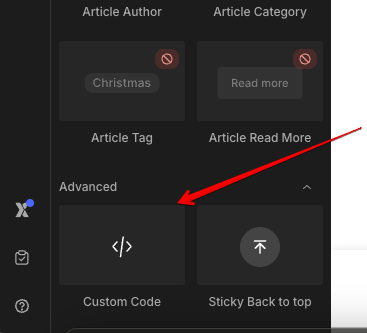
- In the code Editor of the block, copy and paste the code that appears in Option A or B in the HTML/Liquid section:
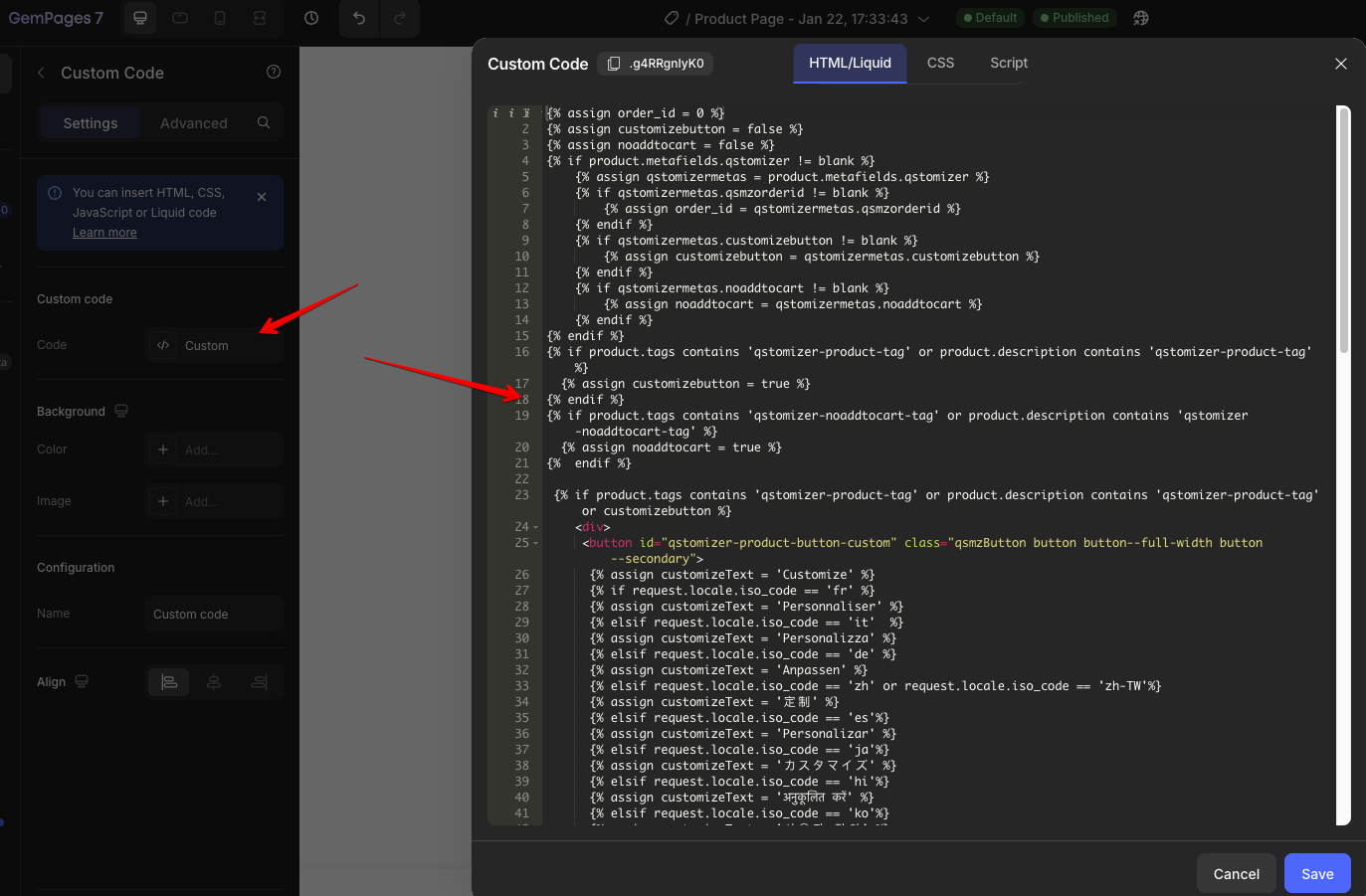
Option A:
Click on "Copy Option A Code" button to copy the full code.
{% assign order_id = 0 %}
{% assign customizebutton = false %}
{% assign noaddtocart = false %}
{% if product.metafields.qstomizer %}
  (...)
{% endif %}
Just in case the code does not work in your theme, use the code that appears in Option B.
Option B:
Click on "Copy Option B Code" button to copy the full code.
{% assign order_id = 0 %}
{% assign customizebutton = false %}
{% assign noaddtocart = false %}
{% if product.metafields.qstomizer %}
  (...)
{% endif %}
You can apply your own styles to the button by using the id #qstomizer-product-button-custom.
Remember to SAVE and Publish the page before test any option.
If you apply the code in option A or B and the "Customize" button does not appear in the product page or does not work as expected, feel free to contact us. Please note: Code modifications are not included in any free service. Depending on the complexity and scope of the required changes, additional fees will apply.
