Troubleshooting: Customized Product Shows as Sold Out in Cart - add/cart.js error
If you are experiencing an issue where a product customized with Qstomizer appears as “sold out” in the cart and cannot be checked out or a cart/add.js error is thrown, this guide will help you identify and resolve the problem.
First, check the bundle product settings:
The cart/add.js error typically occurs when a product cannot be added to the cart due to an inventory issue, such as being out of stock or changes to your store's location settings. To resolve this, please follow these steps:
- Go to Settings.
- Click on the Others tab.
- Click on "Verify & Repair System Product".
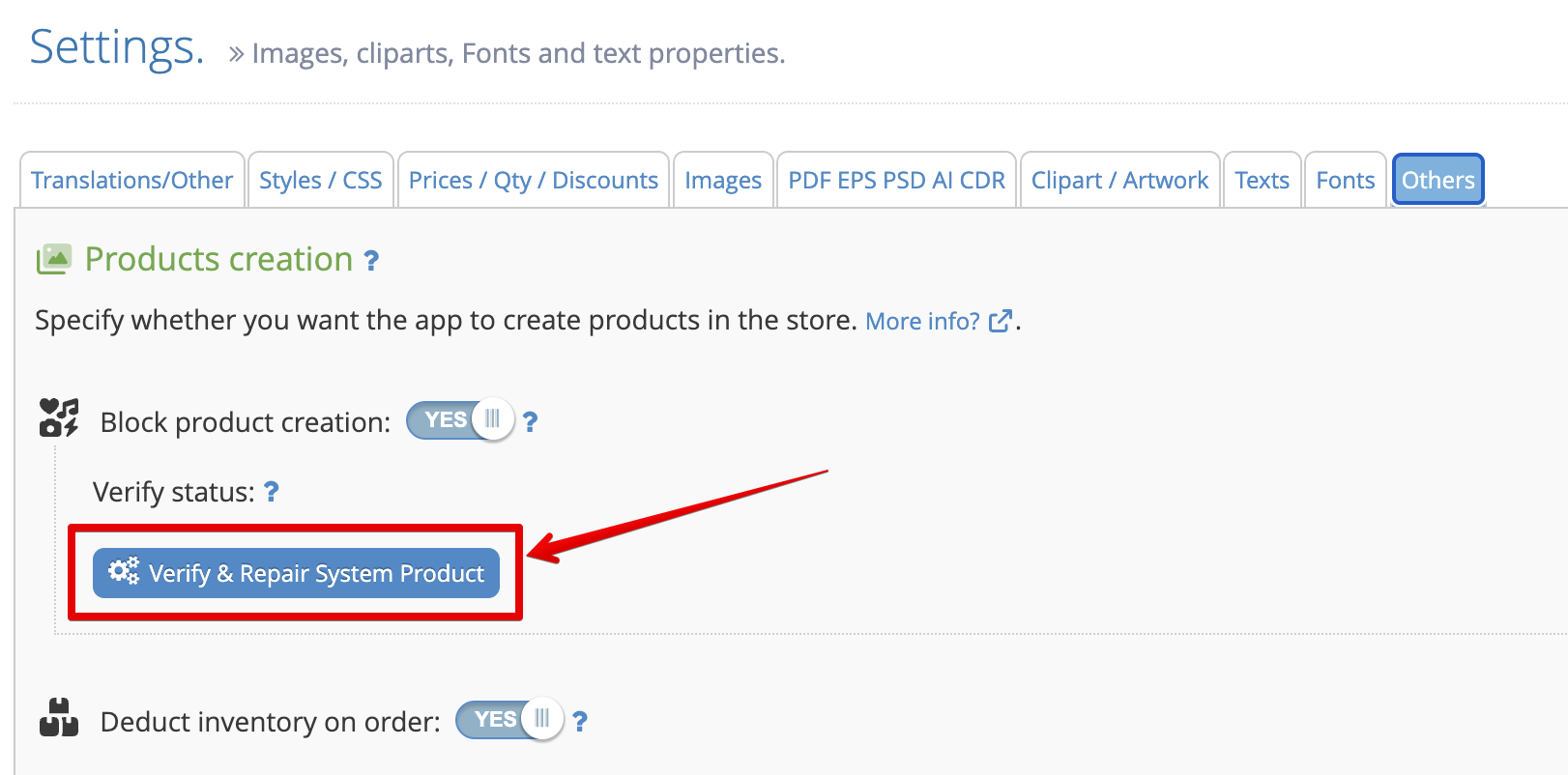
If the problem is not resolved:
Steps to Diagnose and Resolve
-
Check Inventory Settings:
For the product linked to your Qstomizer template (and all its variants), ensure the Shopify setting “Continue selling when out of stock” is enabled.
This allows customers to purchase customized products even if inventory is zero. -
Review Shipping Address Settings:
If you have multiple shipping addresses, verify that your default shipping address is correctly configured and able to deliver products.
In many circumstances, this issue can be resolved by updating the default shipping address. -
Check your Locations:
Check your existing Locations and verify that the location that serves the product is able to ship the products.
Usually the inventory of the product that is causing the issue is not assigned to the right location or the location is not allowed to ship the product. -
Contact Shopify Support:
If the issue persists after checking inventory and shipping settings, contact Shopify Support for further assistance.
Shopify support can access your store’s backend and help resolve checkout or configuration issues.
More Deatils.
The "cart/add.js" error message error when clicking "continue purchase" button is typically caused by your Shopify Location Fulfillment settings.
Why this happens.
When a custom product is generated, Shopify automatically assigns it to your Default Location. If that location is not authorized to fulfill online orders, Shopify’s API will block the sale and report the item as out of stock, even if you have inventory elsewhere.
How to Fix It (Step-by-Step)
1. Enable Online Fulfillment
You must ensure your primary location is allowed to ship products.
- In your Shopify Admin, go to Settings > Locations.
- Select your Default location.
- Scroll to the Fulfillment section.
- Ensure the toggle "Use inventory at this location to fulfill online orders" is switched ON.
- Check that Shipping displays as "On".
2. Resolving a "Greyed Out" Toggle
If Shopify prevents you from clicking the toggle at your default location:
- Go to Settings > Locations and click on a different location.
- Click "Set as default" (or Change default location) and save.
- Go back to your original location settings; the Fulfillment toggle will now be clickable.
- Turn it ON and save.
- You may now switch the "Default" status back to this location if desired.
3. Verify Shipping Origins
- Go to Settings > Shipping and Delivery.
- In the Shipping section, click on your General Profile.
- Ensure your default location is listed under Shipping origins so Shopify knows it can ship from there.
Summary Checklist
- - Fulfillment Toggle: Must be ON for the Default Location.
- - Default Location: Must be an active shipping origin in your Shipping Profiles.
- - Inventory Tracking: While the app creates products automatically, ensuring your store settings allow for sales from all locations prevents API rejection.
