Cross Sell: suggest more products when customers add to cart.
The moment a customer finishes a design and clicks Add to cart is the moment they are most ready to buy. Cross Sell uses that moment to suggest other products from your store.
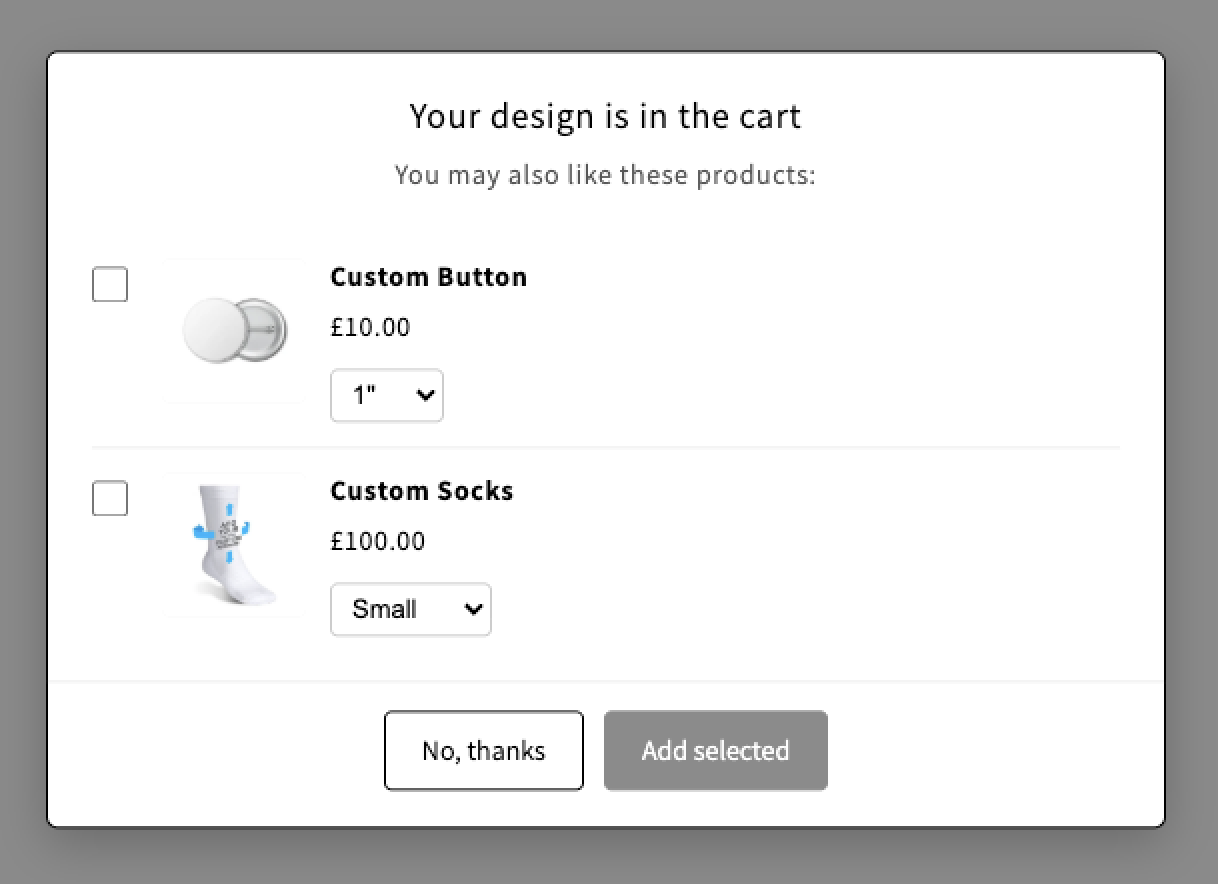
When the customer clicks Add to cart in the designer, their customized product is added to the cart and a popup shows the products you have chosen. They tick the ones they want, pick a size or a color if needed, and everything is added to the cart in one click. If they click No, thanks, they go to the cart exactly as before.
Cross Sell is available on the Professional plan and above.
When is it useful?
- Products that go with the one being customized: a matching mug for a custom T-shirt, a keychain or a bookmark with the same artwork, a gift box…
- Products you already suggest by hand: if you usually tell customers "we can also print this on…", Cross Sell does it for every customer, automatically.
- Accessories and add-ons: gift wrapping, extra items, small low-price products that are easy to add.
How to set up the list for your whole store
1. In the Qstomizer app, go to Settings and open the Cross Sell tab.
2. Click Add products. A search window opens with your Shopify catalog. Type a title to filter and click a product to add it. Click it again to remove it.
3. Close the window. Your products appear in a list. Drag them to set the order in which they are shown in the popup, or click the trash icon to remove one.
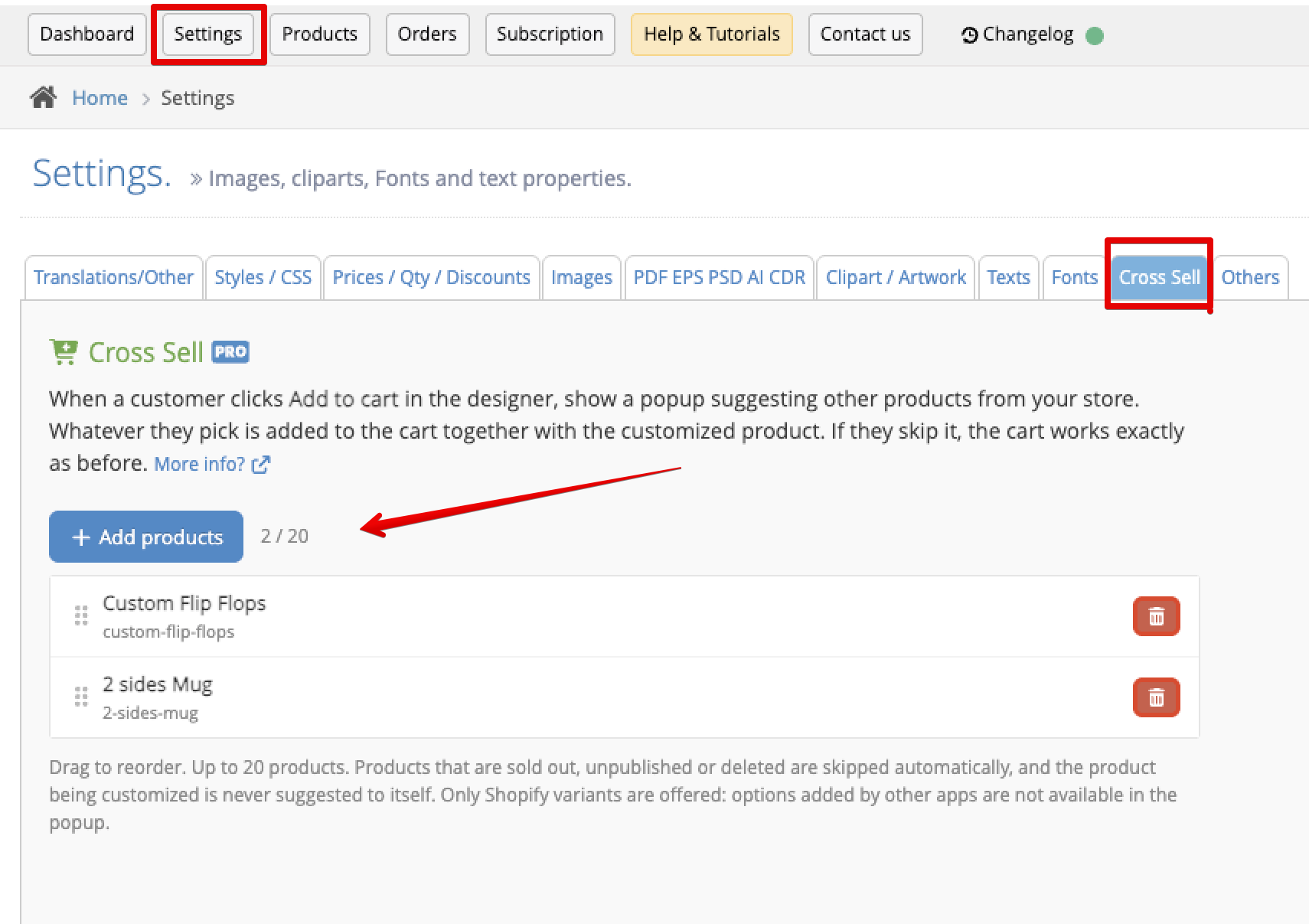
Changes are saved automatically. From that moment, the popup appears in every template of your store. You can add up to 20 products.
A different list for a template (or no popup at all)
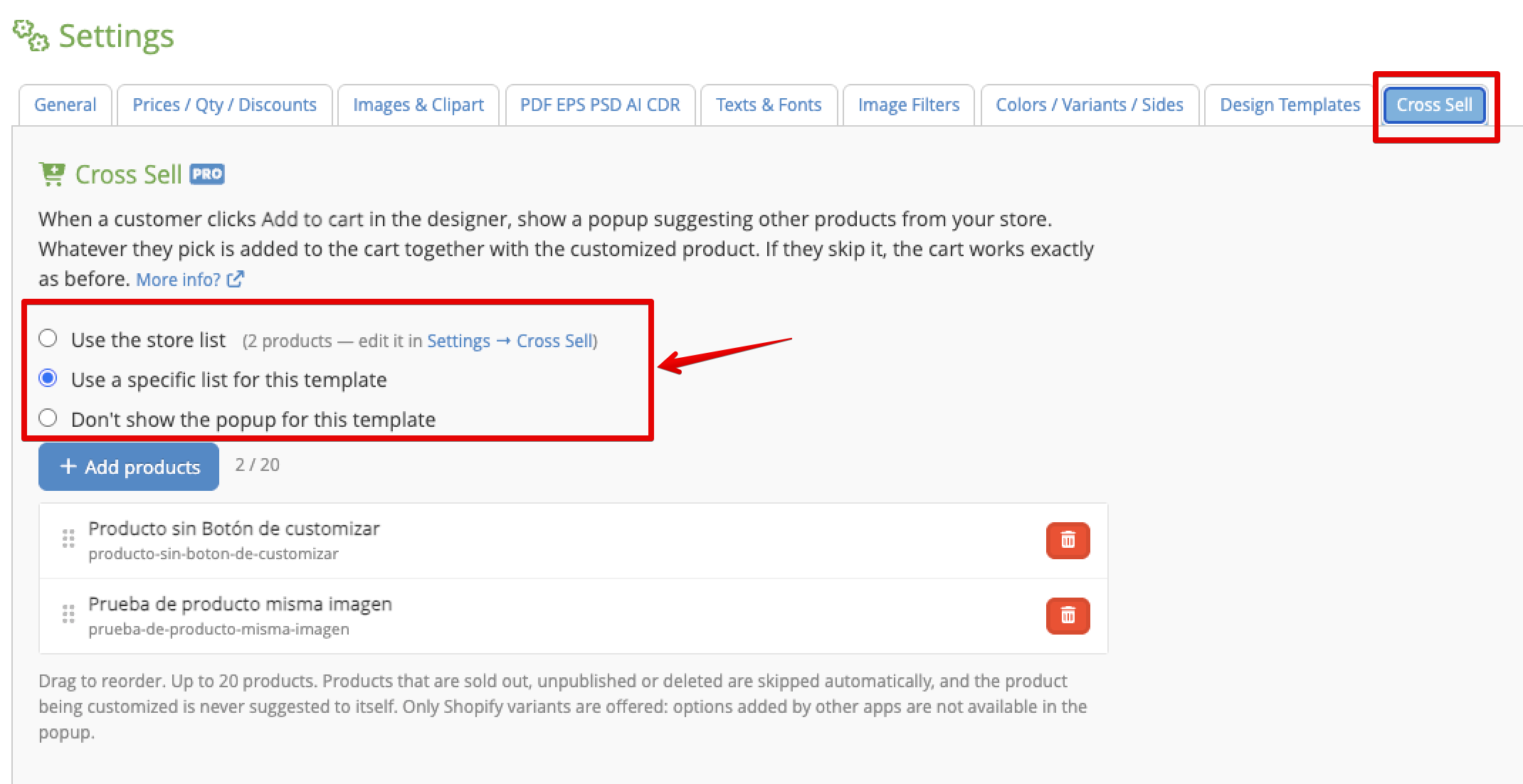
Each template can decide what to do. Open the template settings and go to its Cross Sell tab. You will find three options:
- Use the store list (default): the template shows the list from Settings → Cross Sell.
- Use a specific list for this template: pick different products for this template, with the same Add products button.
- Don't show the popup for this template.
What your customers see
- Each product shows its image, title and price in the customer's currency.
- If the product has options (size, color…), a selector appears for each one. The first combination in stock is preselected, and sold-out combinations can't be chosen.
- Products that are sold out, unpublished or deleted are skipped automatically. You don't need to update the list.
- The product being customized is never suggested to itself.
- The suggested products are added without a design, as normal products of your store, with quantity 1.
Which design goes with the suggested product?
Every product added from the popup carries a hidden property called Design from in the order. It contains the number of the customization and a link to its image, so you know which artwork the customer wants on that product without having to ask.
Popup texts and translations
The popup is translated into all the languages supported by the designer, following the same language rule as the rest of the tool. To change its texts (title, subtitle and buttons), go to Settings → Translations/Other and edit them like any other message.
Limitations
- Only Shopify variants: the popup shows the options of the product's Shopify variants. Options added by other apps (product options apps) are not shown, so don't add products that need them to be ordered correctly.
- Products with subscriptions (products that can only be bought with a selling plan) are not shown.
- The products must be published in your Online Store.
- If you change a product's handle in Shopify, remove it from the list and add it again.
- The popup appears when the designer adds to the cart. It doesn't appear if the template is set to redirect to the product page instead.
What if I change to a lower plan?
Your lists are kept, but the popup is not shown and the lists can't be edited (you can still remove products). If you go back to Professional, the popup appears again with the same products.
