Link one template to multiple products (Multi-link).
By default, a Qstomizer template is linked to one single Shopify product (see A product must be linked to one single template). This is the recommended setup and covers 99% of use cases.
Some merchants need to apply the same customization to many products at once. For those cases Qstomizer includes an advanced feature called Multi-link, which lets you attach one template to multiple products — either by picking them one by one or by matching rules (product tag, product type, vendor, title, handle).
This article explains when to use Multi-link, how to enable it, and its limitations.
When should I use Multi-link?
Multi-link is designed for these scenarios:
- Brand-agnostic products: visually identical products sold as different brands (e.g. the same T-shirt as Bella Canvas, Gildan and Hanes) with different Shopify prices but identical print geometry.
- A simple design applied to a wide catalog: you created a logo or a simple square design that you want to apply to dozens of products (mugs, T-shirts, bags…) without recreating the template each time.
- Large catalogs: stores with hundreds of products where creating a template per product would be unmanageable.
If your template only needs to be linked to one product, you don't need Multi-link. Keep the standard (Single-link) setup.
Single-link vs. Multi-link at a glance
Every template in Qstomizer works in one of two modes:
- Single-link (default): the template is linked to exactly one Shopify product. The "Customize" button appears only on that product page. This is the mode used in every existing tutorial.
- Multi-link (opt-in, advanced): the template is linked to any number of Shopify products, either enumerated one by one or matched by rules. The "Customize" button appears automatically on every product that matches — no need to link them individually.
Multi-link is opt-in per template. Enabling it on one template does not change how the rest of your templates work. You can convert a template back to Single-link at any time from the same page.
How to enable Multi-link for a template
1. Open the template settings page as usual (from the templates list, click on the template you want to configure).
2. Scroll to the product linking section. At the end you will find a button labeled "Link to multiple products" (the small question-mark icon next to it opens this guide).
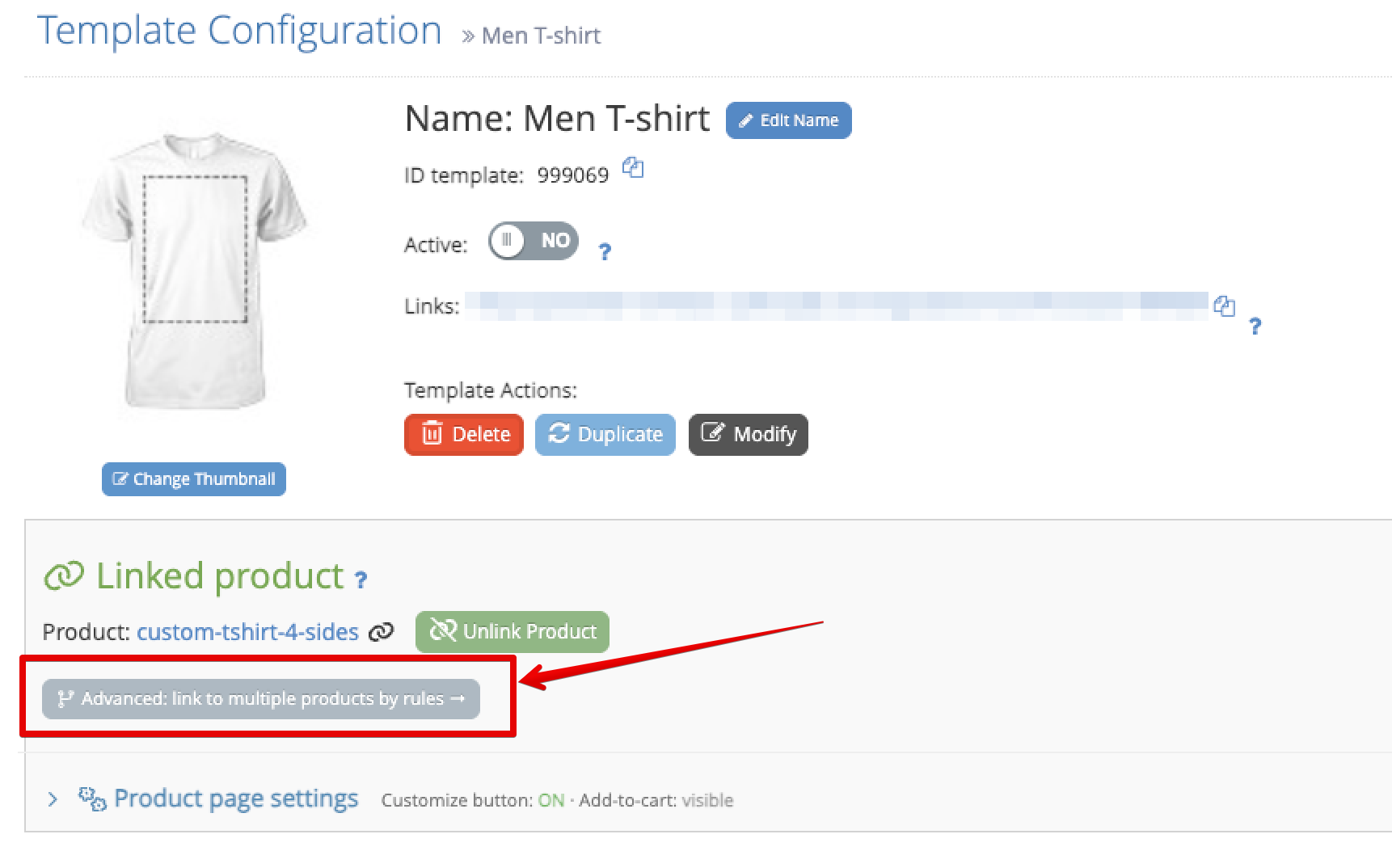
3. Clicking that button opens the dedicated Multi-product link page. If the template is still in Single-link mode you will see an "Enable multi-link on this template" button. Click it and confirm the warning:
"Multi-link disables the linked-variant colors feature. The Qstomizer App Block must be installed in your theme. Continue?"
Once confirmed the page reloads in Multi-link mode and you can start adding products and rules.
Two ways to link products
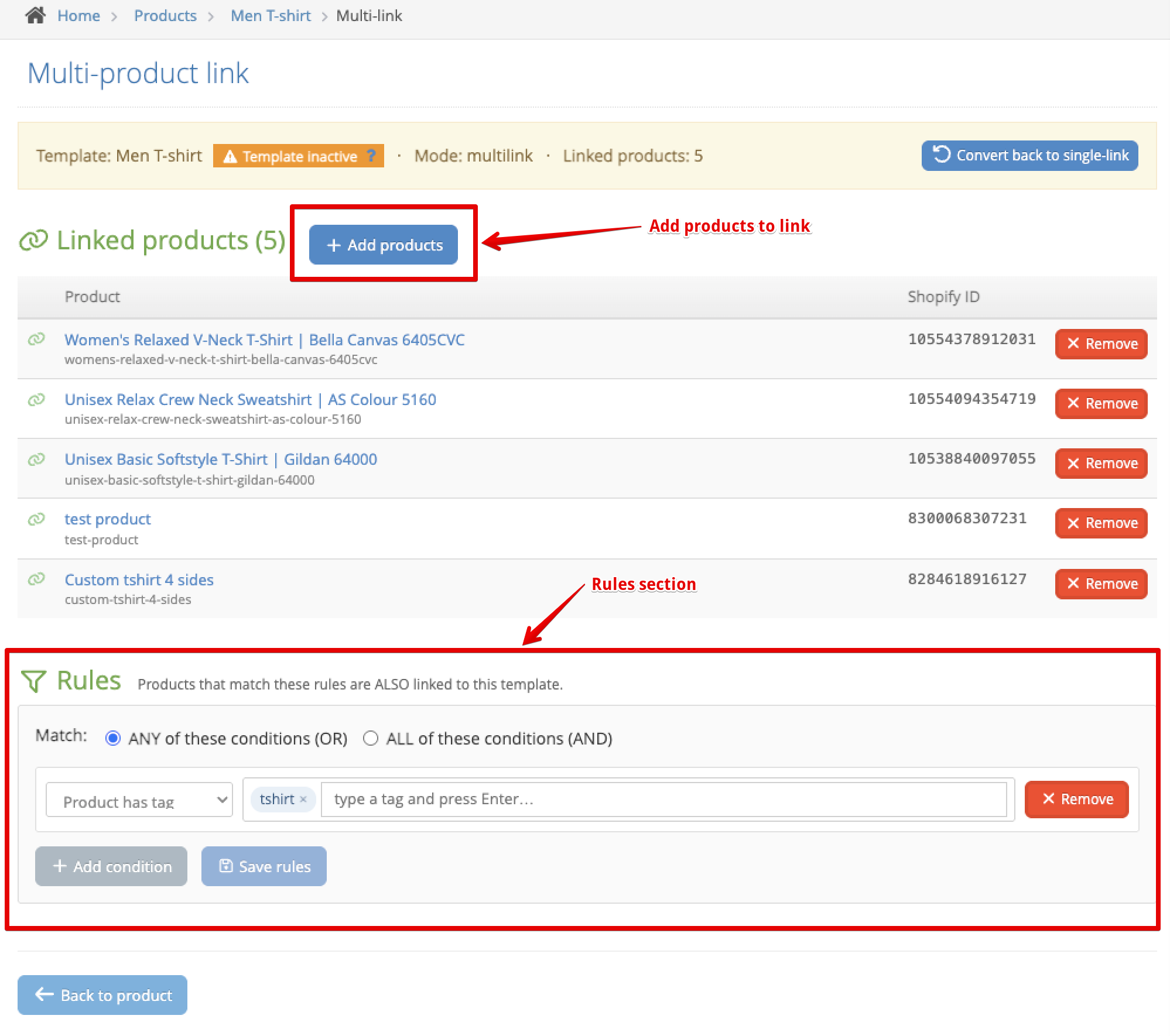
Once the template is in Multi-link mode, the page shows two independent sections. Both add products to the template and you can use them at the same time:
1. Linked products — the manual list.
Click "Add products" to open a search picker with your Shopify catalog. Type a title to filter, click a product to link it. Products already linked to this template appear disabled; products linked to a different template show a clear message telling you where they live so you can decide what to do.
This is the right choice for a small, hand-picked list (up to a few dozen products).
Available on all plans. Each product you link one by one counts toward your plan's product allowance (see Your plan allowance below).
2. Rules — automatic matching. (Professional plan and above)
On the Basic and Advanced plans the Rules block is shown as a preview, with an Upgrade to Professional button. Products matched by a rule don't count toward your plan's product allowance, and new products that match are linked automatically.
Click "Add condition" to build a rule. Each condition can be:
- Product has tag (one or more tags).
- Product type is.
- Product vendor is.
- Product title contains / equals.
- Product handle contains / equals.
At the top of the Rules block you decide how conditions combine:
- Match ANY of these conditions (default, OR): a product matches if at least one condition is true.
- Match ALL of these conditions (AND): a product matches only if every condition is true.
Rules are the right choice for large catalogs. A single "has tag = customizable" condition can match hundreds of products at once.
Saving your work
The two sections save differently:
- Linked products are saved immediately when you click "Add" or "Remove". Every change is applied straight away.
- Rules use an explicit Save rules button. The button lights up only when there are unsaved changes. Adding a condition and then removing it before saving reverts to the last saved state and the button turns off again — nothing to save.
If you try to leave the page with unsaved rule changes, your browser will warn you.
Your plan allowance
Your plan includes a number of products, and single-link templates and Multi-link products share that same allowance: you pay for products, not for the way they are linked. At the top of the Multi-link page, the Plan usage indicator shows how many you are using:
Plan usage: 21 / 25 products (18 template(s) + 3 multi-link product(s))
- It turns amber when you have 5 or fewer left, and red when you reach the limit. At the limit you can't link more products one by one until you upgrade.
- Products matched by a rule don't count (rules are available on the Professional plan and above).
- On plans without a product limit the indicator is hidden.
The Store map indicator
When your store map gets close to its size limit, the Multi-link page shows a Store map indicator with a progress bar:
Store map: 0.3 / 40 KB · 7 products enumerated · 0 rule(s)
The Store map is the list of products linked to your Multi-link templates — either added one by one or matched by a rule. Your storefront uses it to show the "Customize" button on the right products automatically.
A few things to know:
- Enumerated products take space; rules are essentially free. Adding a "has tag = customizable" rule that matches 500 products costs almost nothing; enumerating those same 500 products by hand adds up.
- There is a 40 KB soft cap. If adding a product would push the map over 40 KB, Qstomizer will block the operation and suggest replacing enumerated products with a rule. Rules can cover thousands of products without ever coming close to the cap.
- The progress bar turns yellow at 70% and red at 90% so you can react before hitting the cap.
Tip: if your catalog has a natural grouping (a product tag, a collection, a product type), use a rule first and only enumerate the exceptions.
"Template inactive" — what it means
If the template is marked as inactive in Template settings, the Multi-link page shows a small Template inactive badge next to the template name. You can still edit linked products and rules, but the "Customize" button will not appear on any of the linked products until you activate the template.
To activate it, go back to the template settings page and switch it to Active.
Limitations you must know before enabling Multi-link
Multi-link is powerful but has tradeoffs compared to Single-link. Read this section carefully:
- Linked-variant colors are disabled. In Single-link mode you can map the template variants (color, size…) to a specific product's variants using the Link Variants feature. In Multi-link mode this mapping is not available, because a single template cannot cover the variant structure of many different products. If your template depends heavily on variant linking, keep it in Single-link.
- The Qstomizer App Block must be installed in your theme. Multi-link relies on the App Block to show the "Customize" button on the matched products. It is a one-time setup from the Shopify Theme Editor. If the block is missing, Qstomizer will prompt you with a deep link to the Theme Editor with the block pre-selected.
- The template is hidden from the picker without context. When you open the app from the app menu (without a specific product), Multi-link templates are hidden by default to avoid the "which product should I customize?" ambiguity.
- Each product keeps its own Shopify price. Since the linked products remain independent Shopify products, the final cart price is always the price of the specific product the customer is on. This is the expected behavior for brand-agnostic scenarios.
Switching back from Multi-link to Single-link
You can convert a Multi-link template back to Single-link at any time. Click "Convert back to single-link" at the top of the Multi-link page and confirm.
After conversion the template will have no linked product. You then need to link one manually from the template settings page (Select Product to Link) so the "Customize" button appears on its Shopify page again. All previously enumerated products and rules are removed during the conversion.
Qstomizer shows a summary of what will be removed (how many products and how many rules) before you confirm, so you can back out if you were not expecting it.
Do I need to enable Multi-link?
No. Multi-link is entirely opt-in. If none of your templates use it, Qstomizer works exactly as documented in the rest of the knowledge base. Every existing template stays in Single-link mode and nothing changes.
Only enable Multi-link on the templates where the "one template → many products" pattern really applies. If you are not sure, contact support and we will help you decide.
