Re-linking the template to a product. How to link/unlink a template to change the linked product.
In some circumstances, you need to unlink and re-link a product to a template. Some of the reasons could be:
- - The linked product has changed: different variants, images, description, etc.
- - The "Customize" button has disappeared from the product page or is not in the right position.
- - A message in the tool is telling you that the product cannot be customized.
- - You want to point the template to a different product in your Shopify store.
The link management now lives inline at the top of the template settings page — no wizard, no page reload. Follow the steps below.
Step 1 — Open the template settings
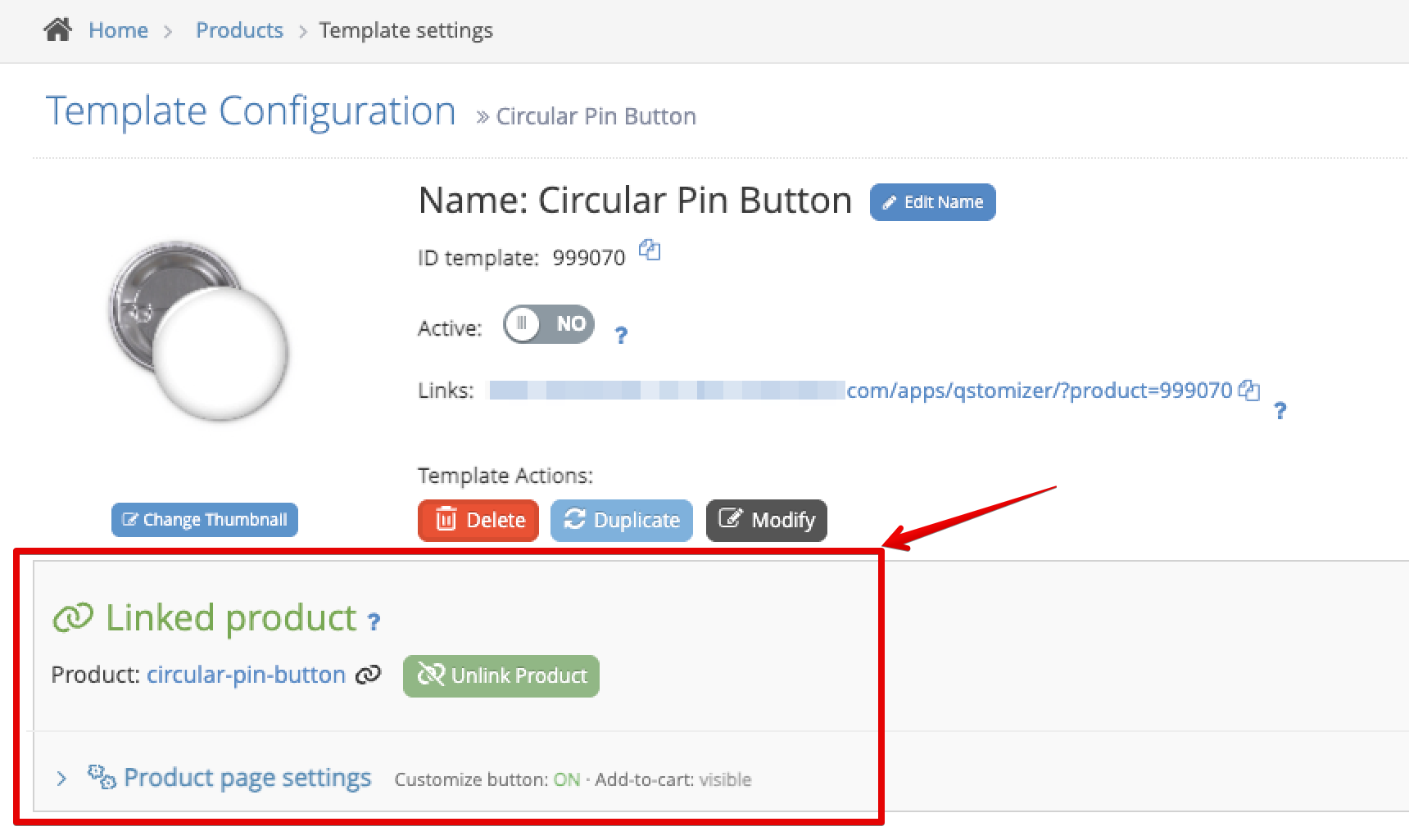
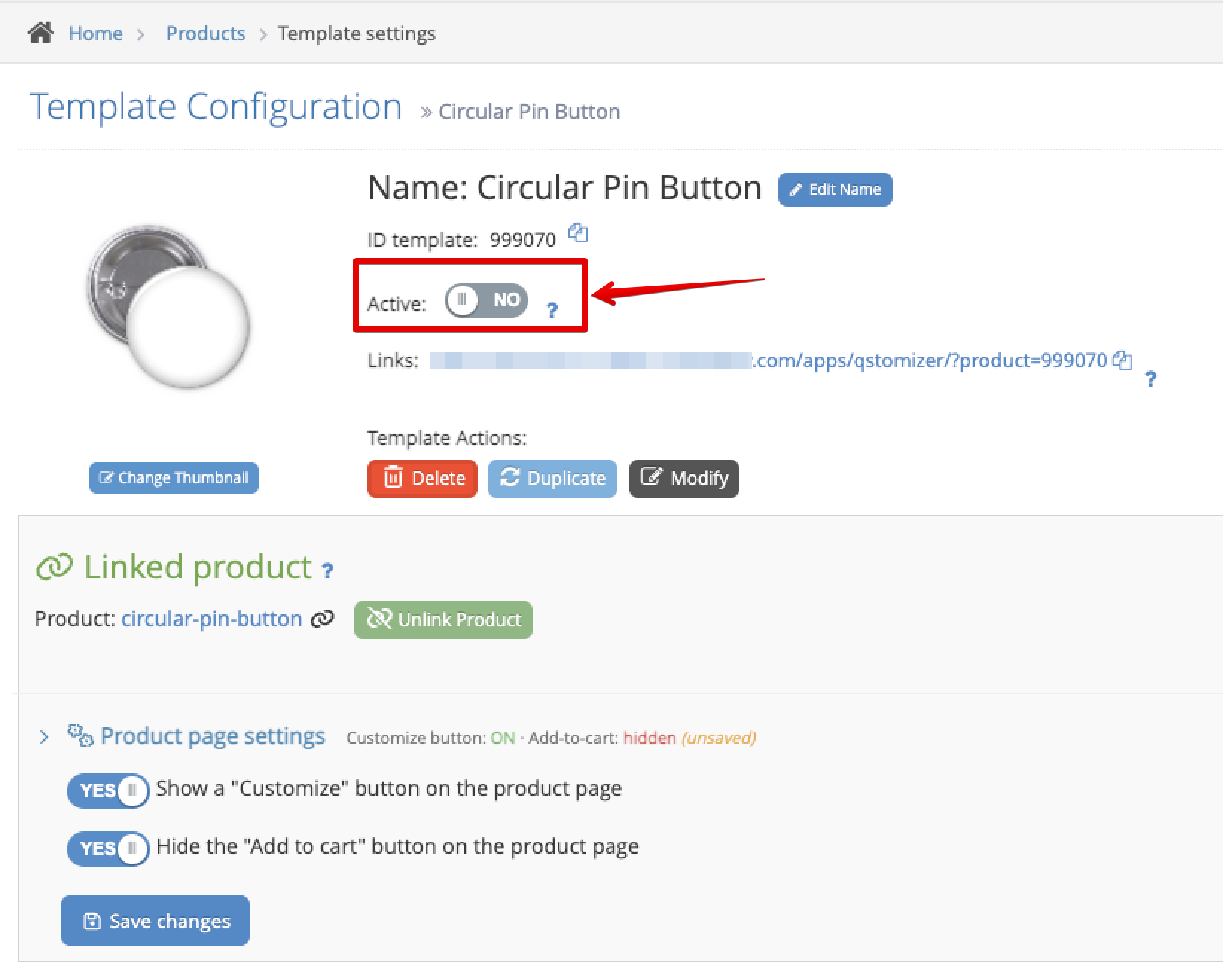
From Templates, click the template you want to re-link. You will see the header with the template name, ID, the Active switch and the Linked product section right below.
Step 2 — Unlink the current product
In the Linked product block, click the green Unlink Product button next to the product name.
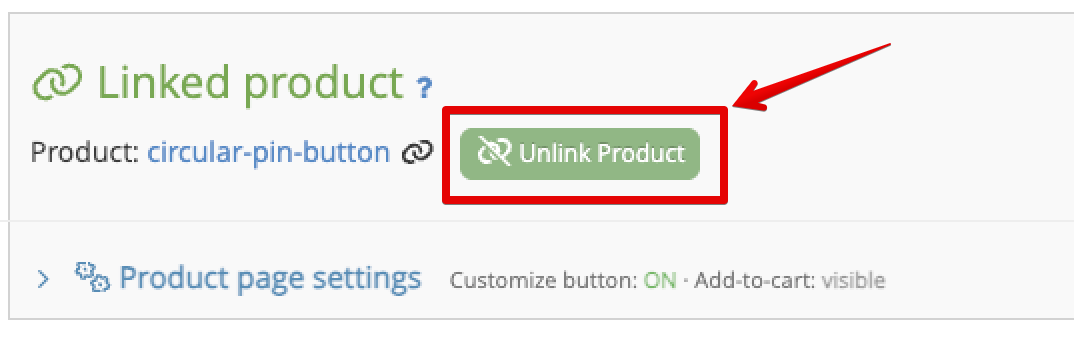
What happens when you unlink:
- - The template is automatically deactivated (the Active switch goes off). A template with no linked product cannot be used on the storefront.
- - The Customize button is removed from the product page in your store.
- - The Add to cart button is restored on the product page if it was hidden.
- - Any color/variant link between the template and the product's variants is cleared.
If you had unsaved changes in the Product page settings toggles, the app will ask you to confirm before discarding them.
Step 3 — Select the new product to link
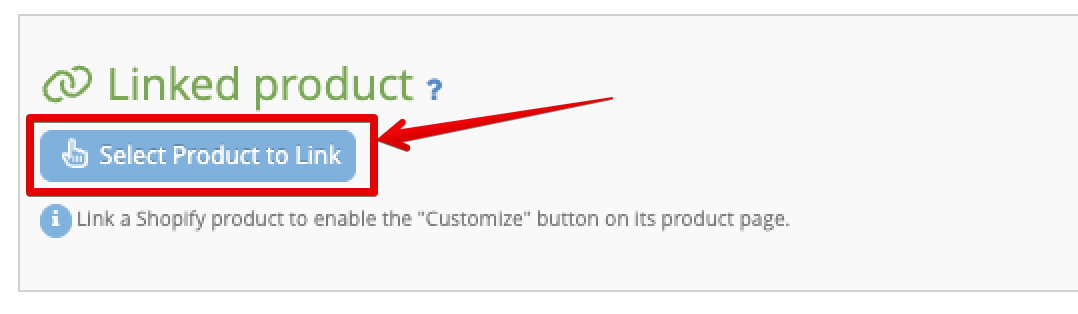
Once unlinked, the block switches to the Select Product to Link state. Click that button to open the product picker.
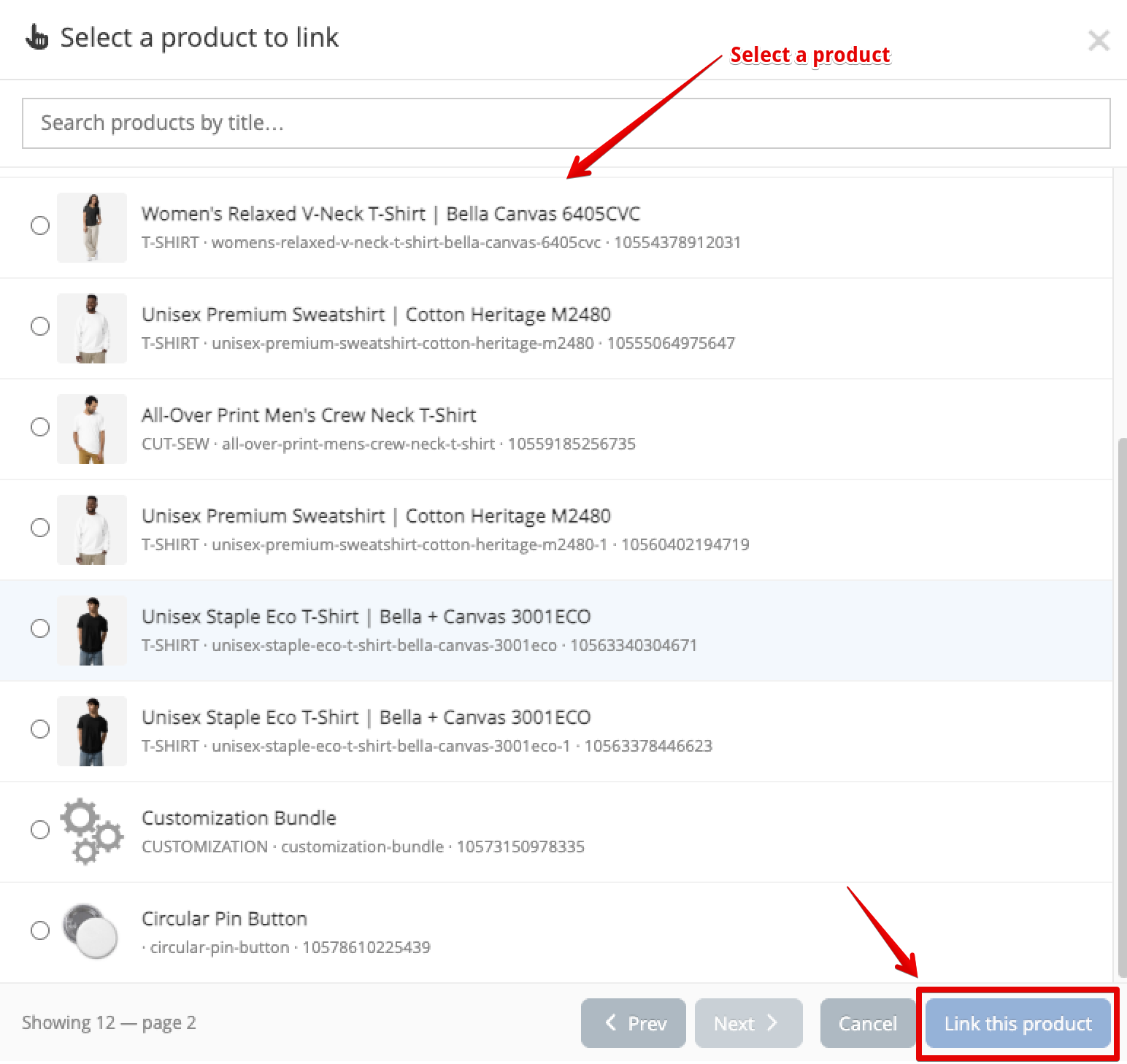
A modal appears with the list of products from your Shopify store. Use the search box at the top to find the product by title, or paginate with Prev / Next. Click the row to select the product — a radio button will mark it — then click Link this product.
If the product is already linked to another template, the app will tell you which one — unlink it there first, then come back.
Step 4 — Review the "Product page settings"
When the link is applied, Qstomizer sets sensible defaults on the linked product:
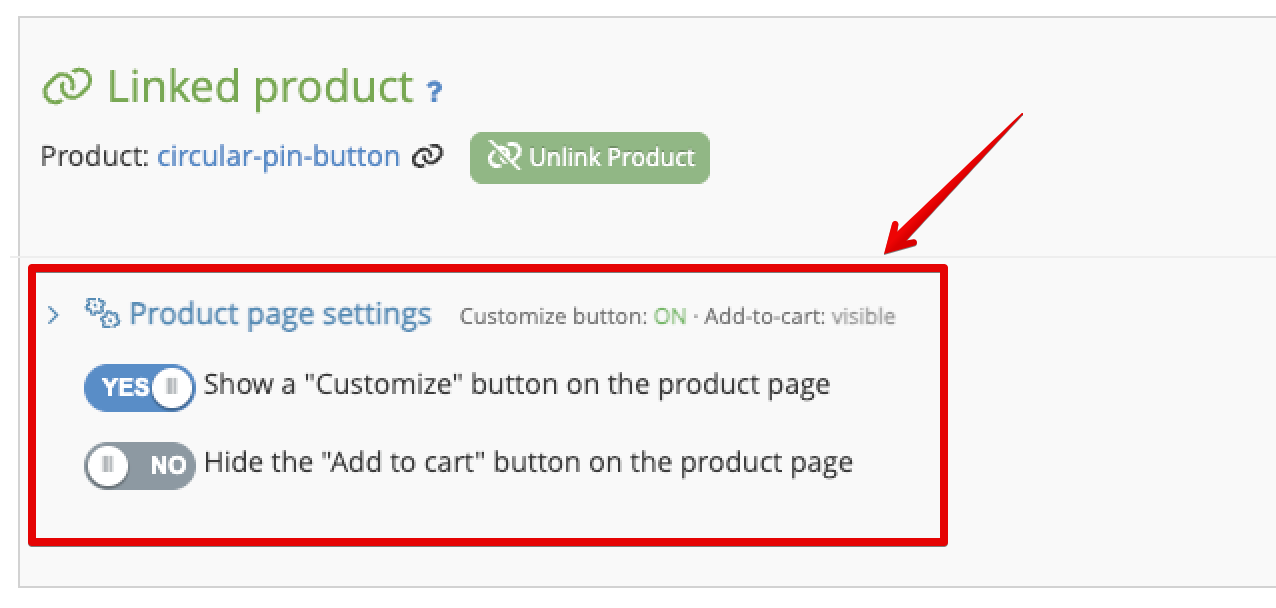
- - Show a "Customize" button on the product page → ON
- - Hide the "Add to cart" button on the product page → OFF
You can review or change these two options at any time. In the Linked product block, click the Product page settings collapsible header (the chevron on the left rotates when opened). The summary next to it reflects what will be saved.
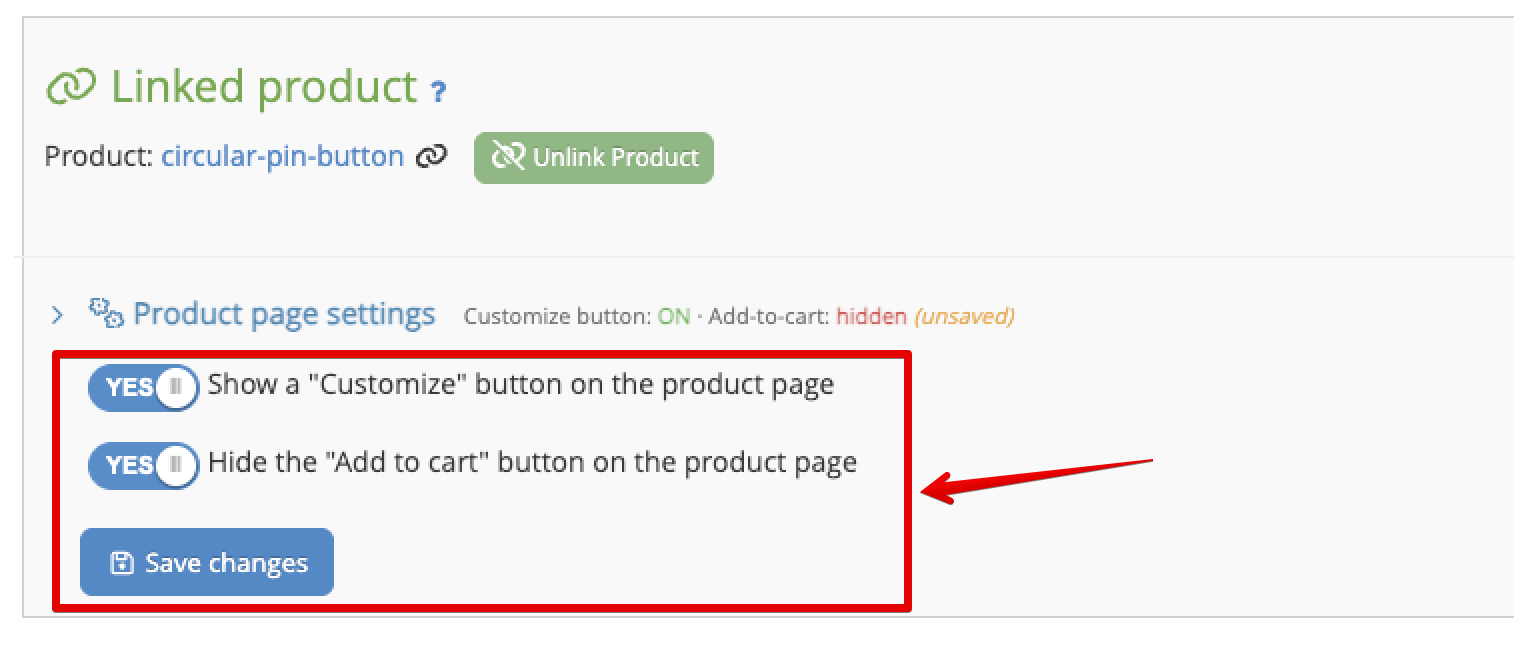
Toggle either switch and a Save changes button appears. Click it to push the change to the product's page in your store.
Step 5 — Activate the template
Linking a product does not activate the template automatically. Turn on the Active switch at the top of the settings page to make the template available on your storefront. The number of active templates counts against your plan's quota.
Tips & troubleshooting
- - Nothing happens when I click "Select Product to Link": the picker loads products from Shopify on demand. If the list stays on "Loading…" for more than a few seconds, check your connection and reload the page.
- - "This product is already linked": each Shopify product can be linked to only one active template. Open the template mentioned in the error, unlink the product there, then link it here.
- - The "Customize" button did not appear on the product page: make sure the template is active and that the Customize button toggle is ON in Product page settings. If your theme uses App Blocks (Online Store 2.0), also check the Qstomizer App Block / App Embed configuration.
- - I want to link the same template to several products: single-link binds one template to one product. Multi-link (linking one template to multiple products by rules) is a separate feature available for selected stores — contact support if you need it.
