Qstomizer includes the possibility to automatically generate customer designs and create download links without the need of using the generation tool.
Notice that this is a Beta feature. Please, feel free to provide any feedback you may have.
1. Automatically generate and download the design.
You can download the design made by your customers from the order page. You can enter in the "Orders" section of the backoffice, select and order and click on "Auto Generate & Download" link to automatically generate the design and download it.
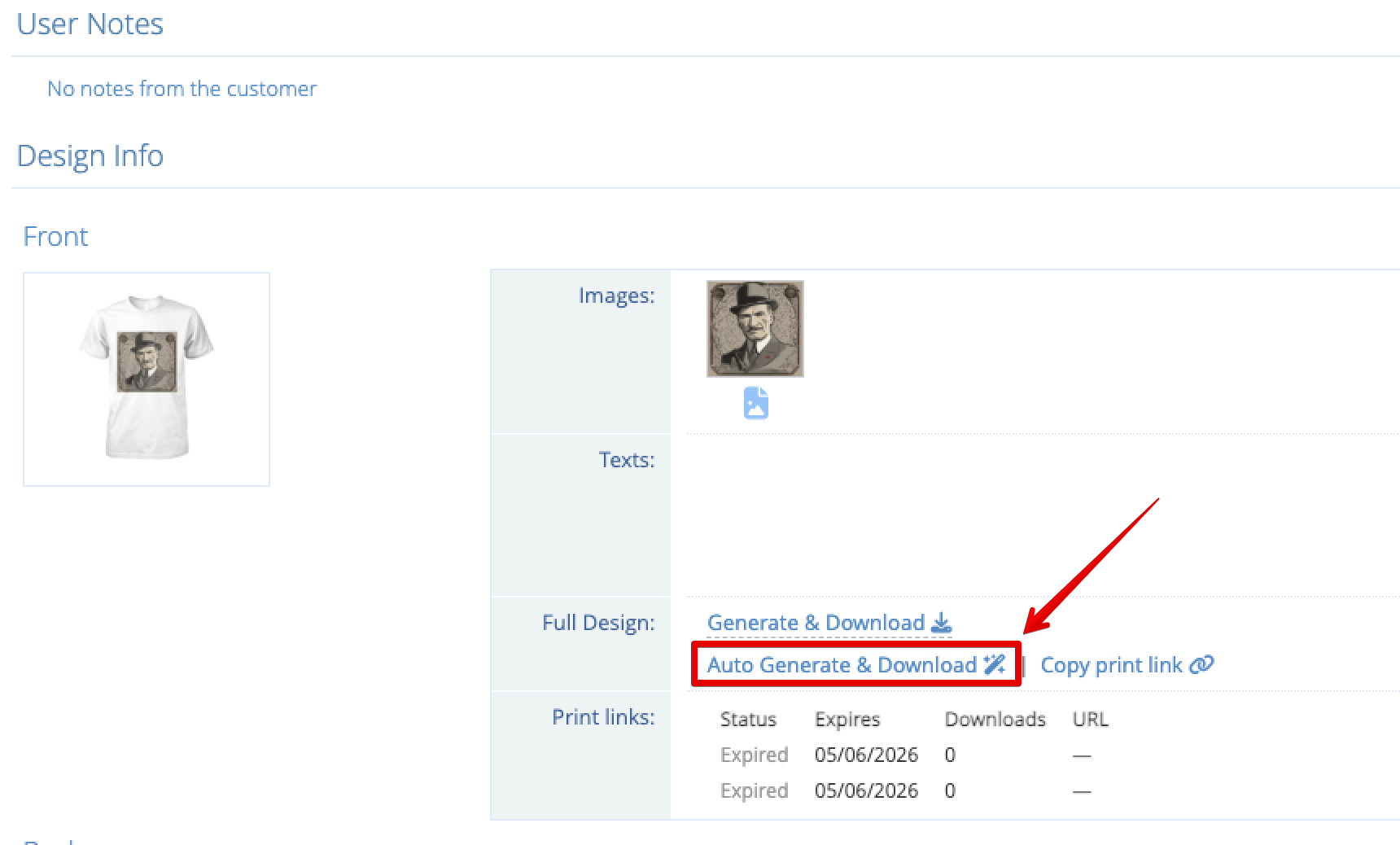
The design will be download with the settings defined in the related product settings. To change the settings, follow these steps:
- Step 1: Go to the "Products" section of the backoffice
- Step 2: Select the product you want to modify the settings.
- Step 3: Click on the "General" Tab
- Step 4: Edit the image settings at the bottom of the page.
- Step 5: Click on "Save Generation Parameters".
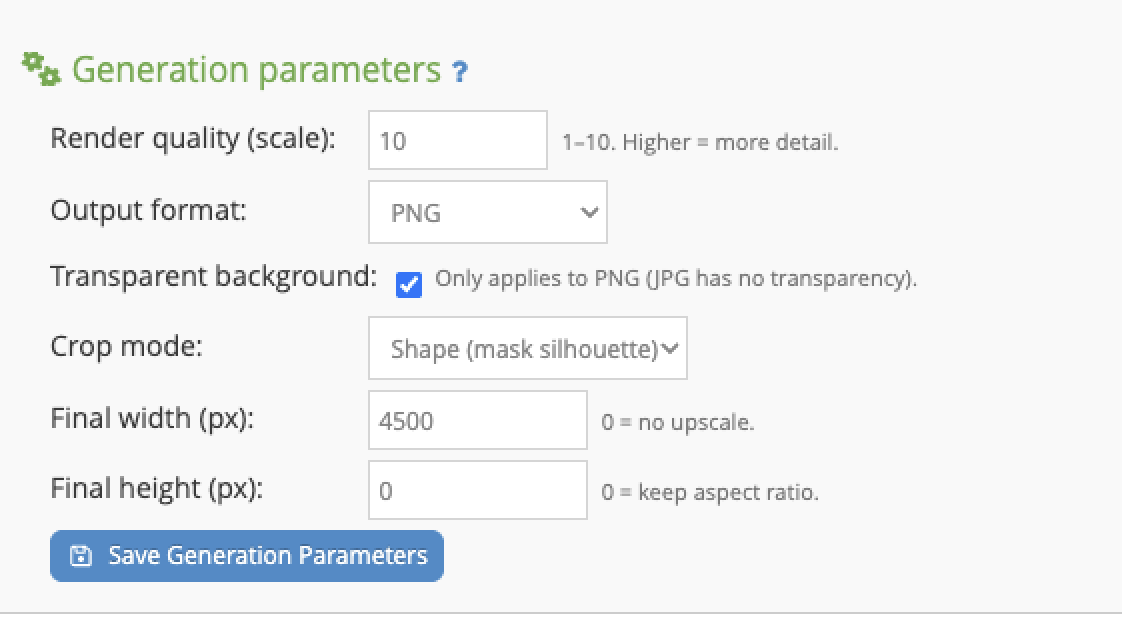
The parameters correspond to the same settings that you can find in the generation tool.
- - Render quality (scale): The value can be 1-10. Higer value involves higher files. Select the appropriate value based on your requirements.
- - Output format: PNG or JPG
- - Transparent Background: If you select PNG as the output format, the background can be transparent.
- - Crop Mode: Full Canvas (The full design area is downloaded), Squared: The design is cropped to a square shape using the diecut lines. Shape (Mask silhouette): The design is cropped to the shape of the mask (squared, circular or polygonal) as defined in the product settings. Trim to design: The file is cropped to the bounding box of the artwork itself, removing all the empty space around it (see below).
- - Final Width (px): If you need the design with a specific size in pixels, define the width here. The image will be scalled and cropped to that exact size.
- - Final Height (px): If you need the design with a specific size in pixels, define the height here. The image will be scalled and cropped to that exact size. If you set 0 in this parameter, the height will be automatically calculated based on the width keeping the aspect ratio.
Trim to design (crop the file to your artwork)
By default the generated file always has the size of the full print area, with the design placed inside it and empty space around. If you prepare your files manually for production (DTF, DTG, sublimation...), that means opening every file in an image editor to remove that empty space before sending it to print.
With the Trim to design crop mode, the file is cropped automatically to the bounding box of the artwork, so you get only the design, with a transparent background and nothing around it.
This mode always outputs a PNG with a transparent background: the empty area is detected through the transparency of the image, so the format and the transparent background options are set automatically and cannot be changed while this mode is selected.
Important: because the file no longer matches the size of the print area, it also loses the position reference of the design inside it. This is ideal if you place the designs manually (for instance, arranging several designs on a DTF sheet), but it will break workflows where your printing software positions the design automatically expecting the full print area size. In that case, use one of the other crop modes for that product. You can set the crop mode per product and also override it per side.
Trim to design is available on the Professional plan. If you are on a free trial you can test it during the trial period.
Notice that changing the settings will affect the generated design after the settings are saved. Previous designs will not be affected.
1. Generate download links.
If you need to share the generated design with your customers, your team or external parties (For instance, a fullfilment company), you can create download links for each order and side of the product.
To do so, just click on the "Copy print link" option to generate a shareable link.
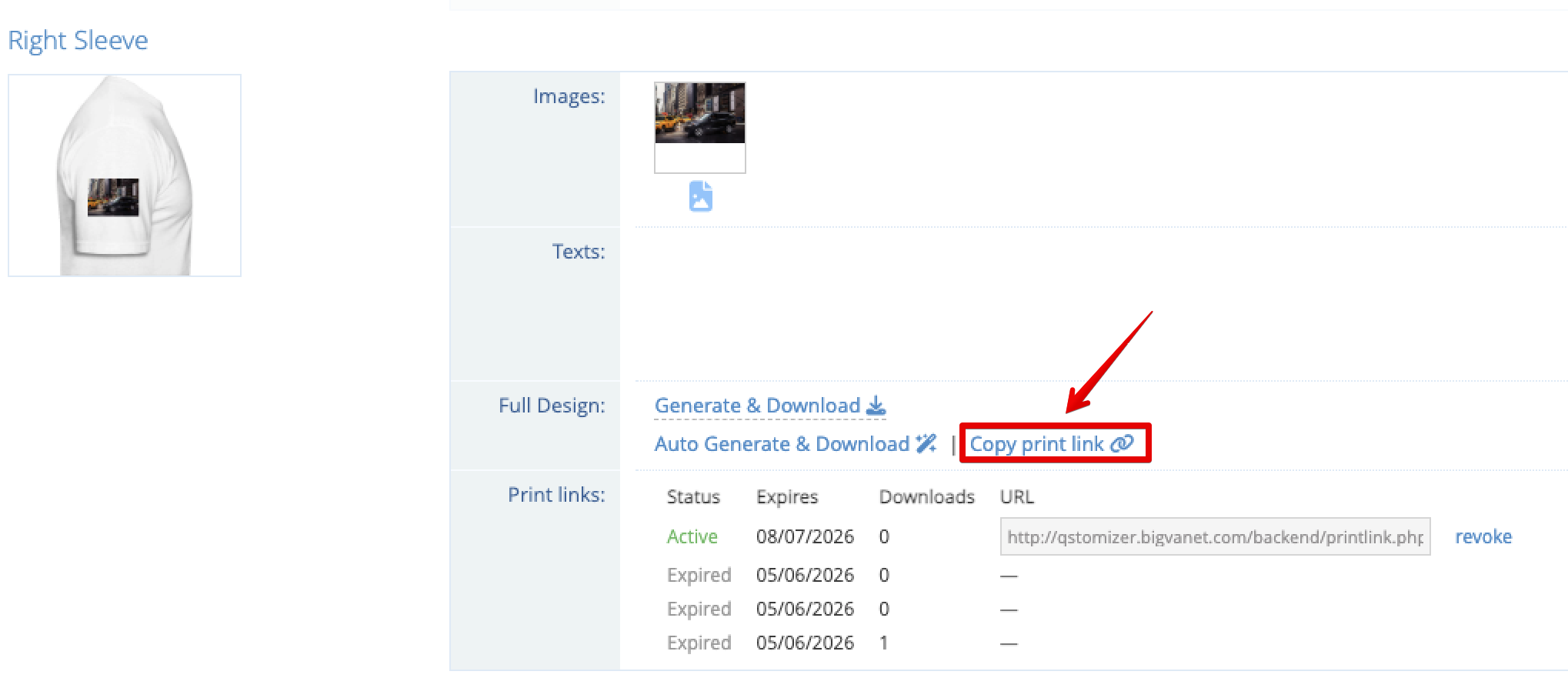
When you click on the link, the systems automatically copy in the clipboard the shareable link and adds it to a list. In the list you can view all the generated links, the times they were generated and you can revoke the link anytime.
Notice that all the links expire after 30 days unless revoked.
