Live 3D preview: let your customers see their design on a 3D product.
With the live 3D preview, your customers see their design on a 3D model of the product while they customize it. Every text, image or clipart they add appears on the 3D model at the same moment, and they can rotate it to look at it from every angle.
It helps customers trust what they are buying, specially on products that wrap around (mugs, tumblers, candles) or have several sides (T-shirts, hoodies, tote bags, caps).
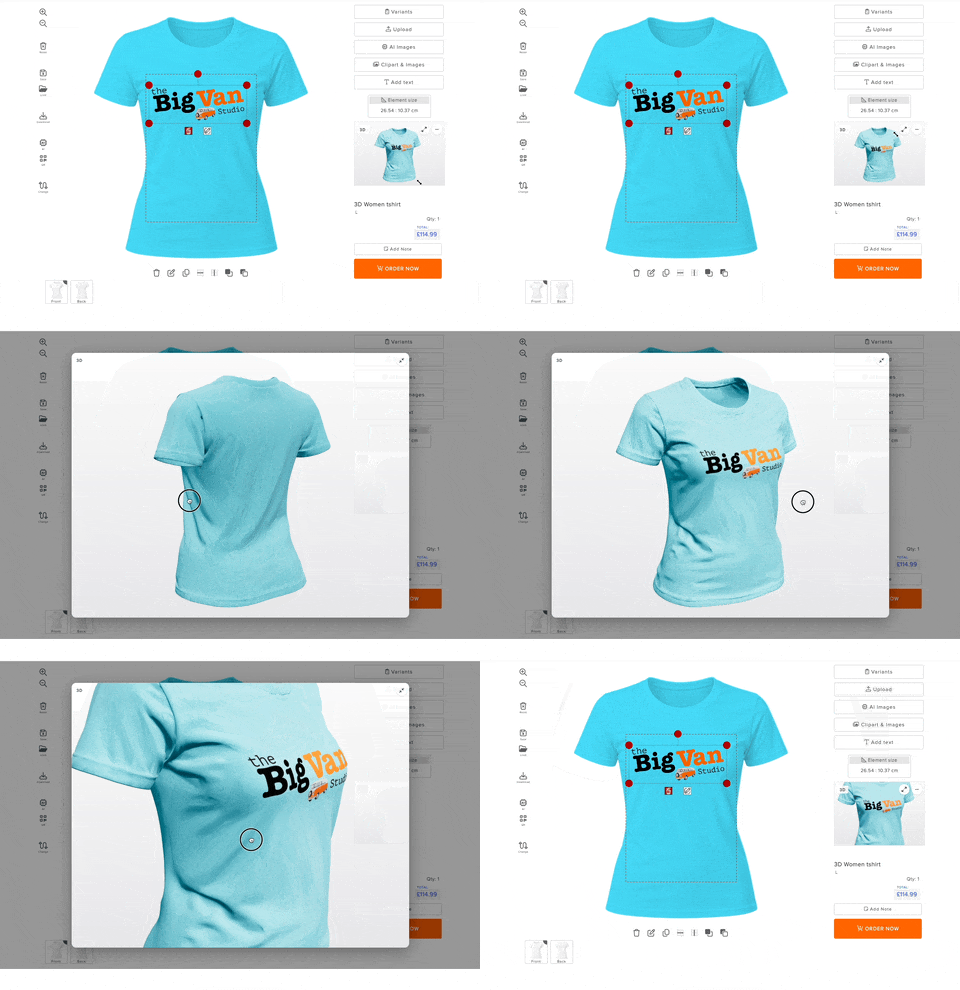
What your customers see
- The design is updated on the 3D model in real time, as they work.
- They can drag the model to rotate it.
- When they change the side they are editing (front, back, sleeves…), the model turns to show that side.
- The color of the model follows the color of the variant they choose.
- They can always enlarge the 3D preview to the center of the screen, or hide it.
- On mobile, the 3D preview is a button in the bottom-left corner of the product. They tap it to open the 3D model.
How to add a product with 3D preview
The 3D preview comes ready in the 3D templates of the Qstomizer catalog. There is nothing to set up.
1. In the Qstomizer app, create a new customizable product and select the Shopify product, as usual (see First step: How to add a customizable product to your store).
2. In the list of pre-made templates, open the 3D Product templates section and choose a template. 3D templates also have a 3D badge in the other sections.
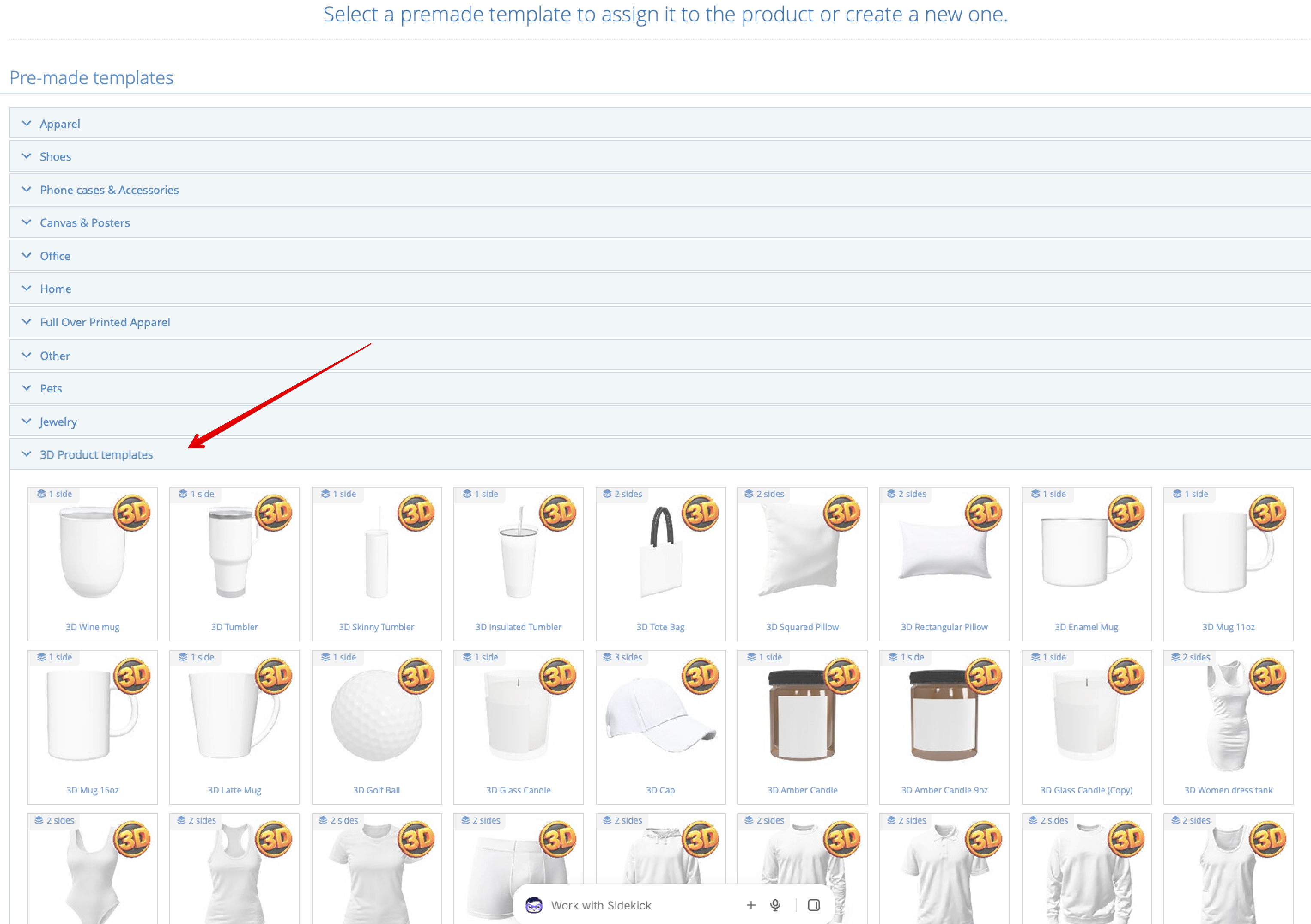
3. Finish the steps as with any other template. The print areas, the sides and the print file settings are already prepared for the 3D model, so the design your customer sees in 3D matches the print file you receive.
3D options: position, size and auto-rotate
Go to Settings → Translations/Other and look for 3D Options:
- Position:
- In the right column, below the buttons (default): the 3D preview uses the free space between the buttons and the price. If there are less than 100 px free, it moves to the corner.
- Fixed in the bottom-left corner of the product.
- Floating: customers can drag it anywhere on the screen.
- Size: from 160 to 480 px. It is the size of the box in the corner and floating positions.
- Auto-rotate: the model turns slowly on its own so customers see it from every angle. It stops while they drag it. Off by default.
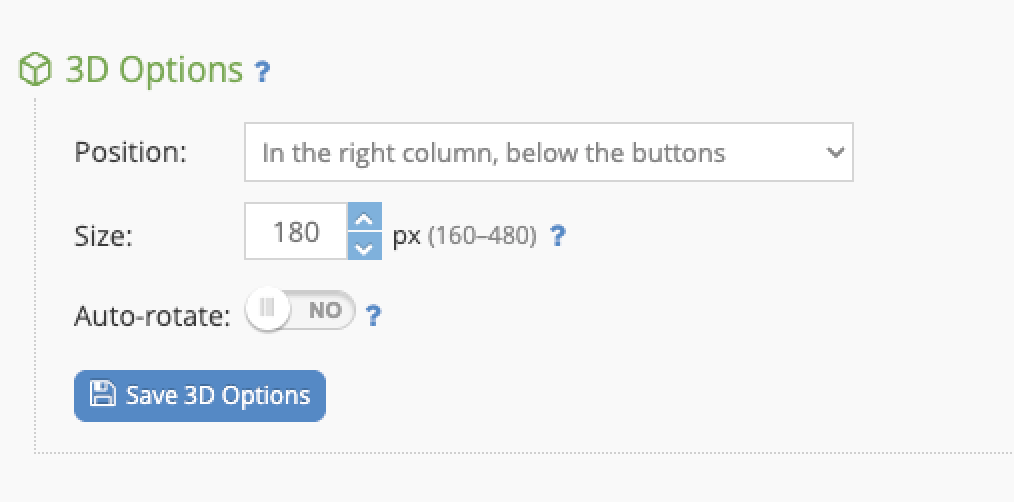
Click Save 3D Options. These options apply to all your 3D templates. To use different options in one template, open its Template settings, go to the General tab and turn off Use the 3D options defined in "Settings".
Colors and variants
The 3D model takes the color of the variant selected by the customer. For that reason, the variants of a 3D template are always Based on a Mask / Colors, and the Based on Images option is not available (see Difference between a variation "Based on a Mask / Color" and "Based on Images").
Which plans include it?
- Basic: not included. 3D templates work as normal templates, without the 3D preview.
- Grow: 1 product with 3D preview.
- Advanced and Professional: all your 3D templates.
- Free trial: all your 3D templates while the trial lasts.
On the Grow plan, the 3D preview is shown on your oldest active 3D template. The rest of your 3D templates work normally, without the 3D preview, and their Template settings show a notice. If you pause or delete that template, the 3D preview moves to the next one. A template linked to several products (Multi-link) counts as one.
Limitations
- The 3D preview is only available for the 3D templates of the Qstomizer catalog. It can't be added to a template you created from scratch or to a template you already have.
- You can't upload your own 3D models.
- The 3D preview is shown in the designer. The cart and the order show the usual image of the design.
Would you like a product in 3D that is not in the catalog yet? Contact us and tell us which one.
What if I change to a lower plan?
Nothing is deleted: your 3D templates are shown without the 3D preview (on Grow, it stays only on one product). If you go back to a plan that includes it, the 3D preview appears again.
